
.png)
.png)
ENG


Cropilot is a tool that helps accelerate one of the most time-consuming parts of digitization: scan processing. Using AI, it automatically recognizes pages, suggests their cropping and rotation, and allows the user to easily check or adjust only those results that truly need it. This saves time, reduces manual labor, and simplifies the processing of large digitization batches.

Digitizing contemporary and historical documents, such as books, manuscripts, and newspapers, helps protect physical originals from damage while making library resources accessible to researchers, students, and the general public. Thanks to digitization, people can view rare documents from anywhere without needing to handle the originals.
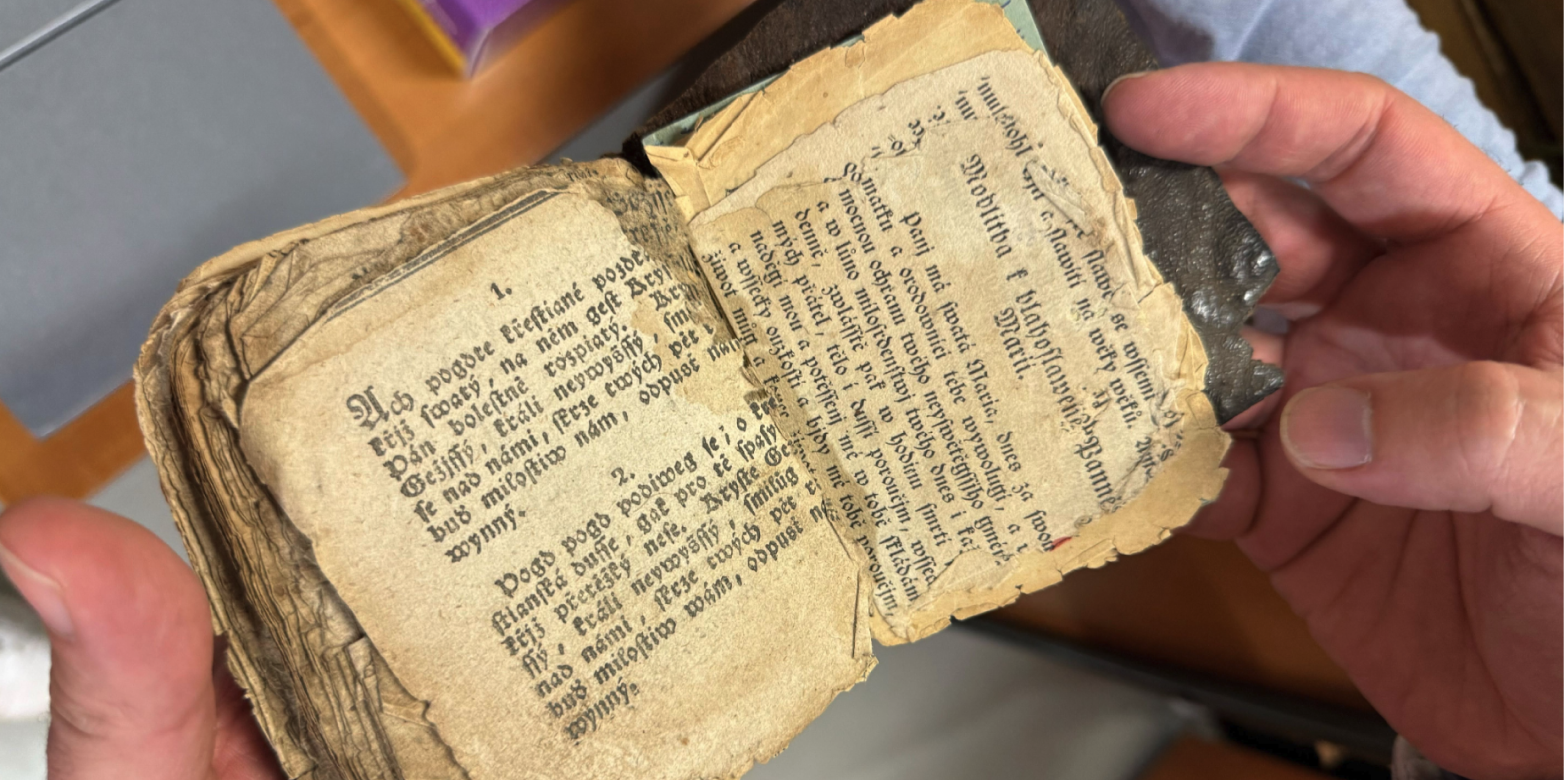
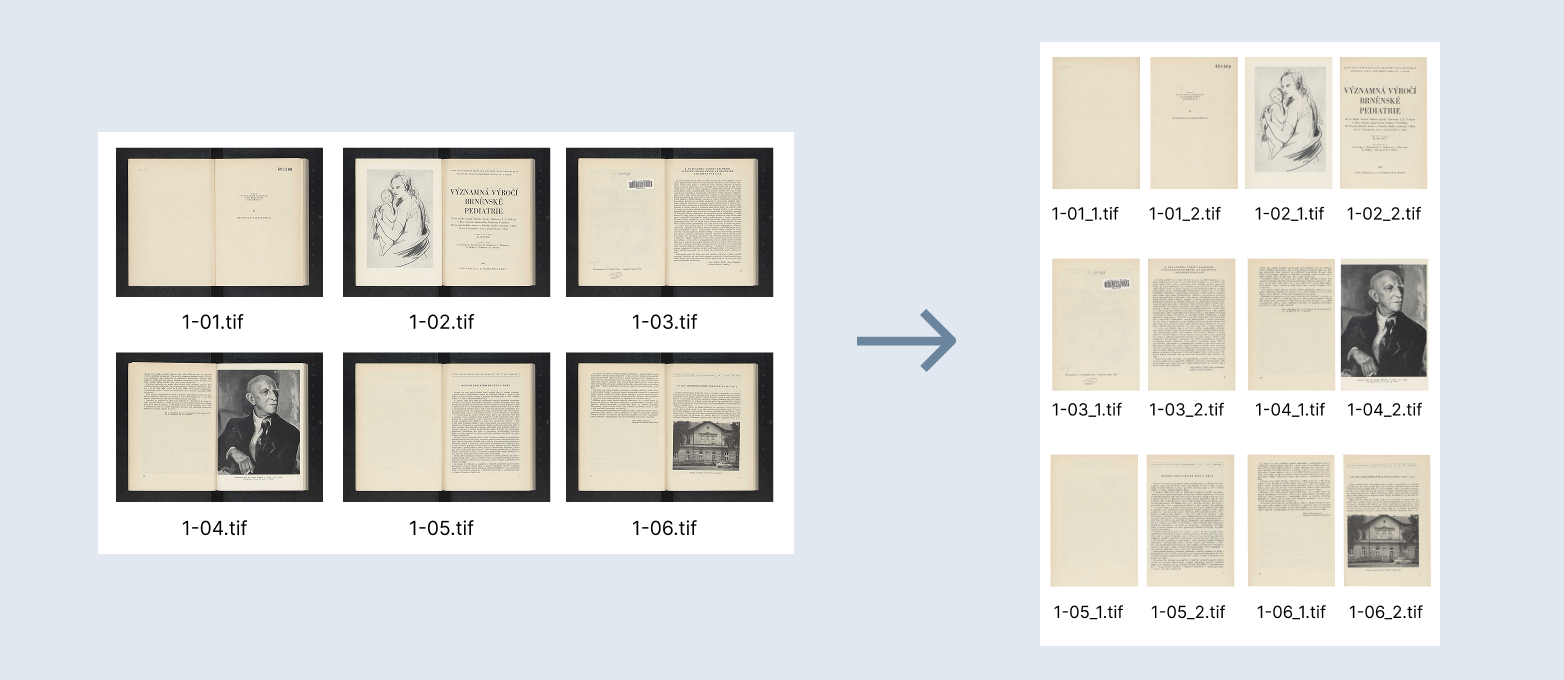
The digitization process has one significant bottleneck: converting the scans themselves into the format we want to preserve them in. This includes, for example, cropping margins or splitting a scan into individual pages. Some collections can comprise hundreds of thousands of scans, and manually cropping them page by page represents an enormous amount of time that could be used elsewhere.
We sought to eliminate this very bottleneck by developing the Cropilot tool.
Cropilot is a system for fully automatic scan cropping using advanced AI vision models. Using artificial intelligence, it automatically finds the correct page crop, and can predict the number of pages in a scan, their placement, and rotation.
It then displays the results in a clear editor, where the user can further work with them – moving, adjusting, or checking the crops. This way, even collections of a thousand pages can be processed within minutes.
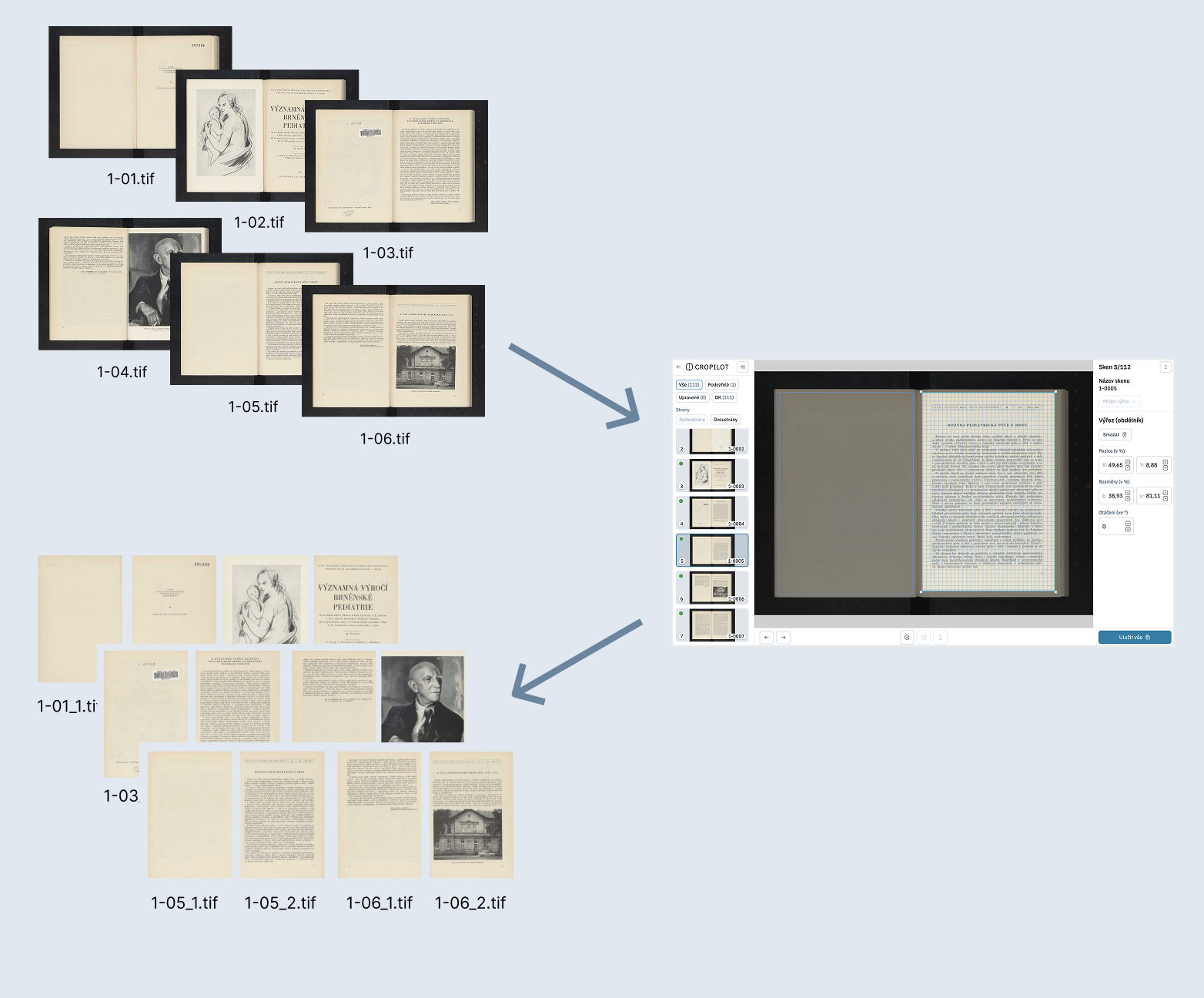
The application's output is a list of cropping instructions, which Cropilot can apply to scan data in standard image formats such as JPG, PNG, or TIFF.
The application allows working in several modes depending on the level of control or automation the user requires.
The most common use case is checking automatically suggested crops in the web editor.
Cropilot uploads all scans and uses an AI model to render page positions. If the model is unsure of the result, it flags the page for review. The user can then view only these uncertain pages in the application and correct any errors.
After review, simply save the result, and the application can generate the cropped documents.
Our models were primarily trained to detect books and newspapers. However, the application can also handle other types of data, such as specific collections or different cropping requirements.
Cropilot allows for training and using custom models. First, training data needs to be uploaded. The user then marks the correct position and rotation of pages for each scan in the editor. Based on their preferences, a model is trained that can be used for further data processing.
The new model thus learns to imitate the cropping style that the user set in the training data. Based on our experience so far, a few hundred data points were sufficient for fine-tuning.
Cropilot can be used even without needing to open the editing interface.
After uploading and processing the data, the application immediately creates a folder of files with the finished pages. This mode can be integrated as one step into larger automation processes.
Cropilot is designed to fit into the real-world digitization process – from managing groups to reviewing automatically suggested crops.
The editor itself is built on the principle that the largest possible part of the work should be automated.
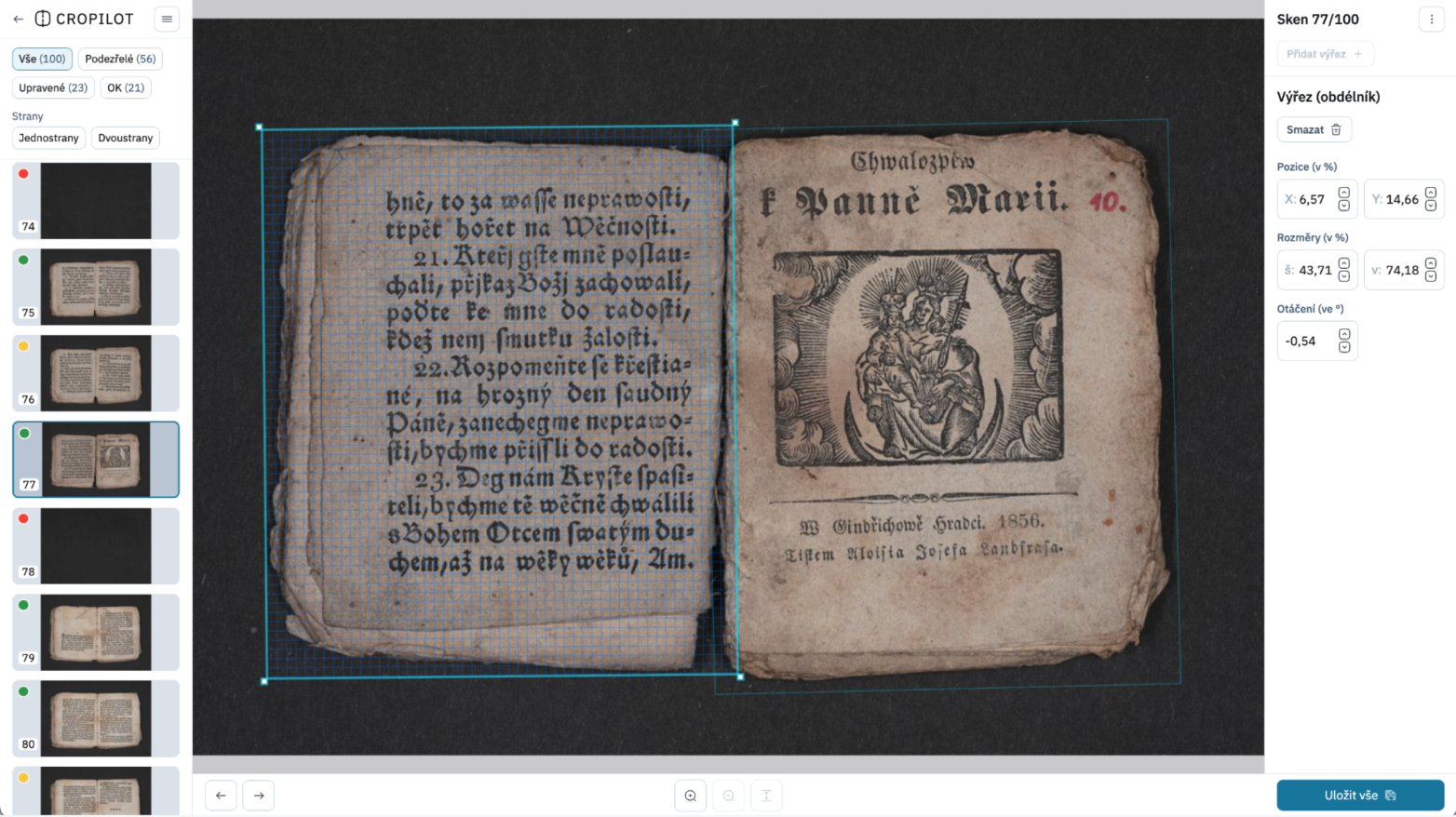
For each scan, the AI model suggests the number of pages, their position, size, and rotation. This means the user doesn't have to manually go through all pages one by one. They primarily focus on areas where the model is unsure or where the result deviates from the expected crop.
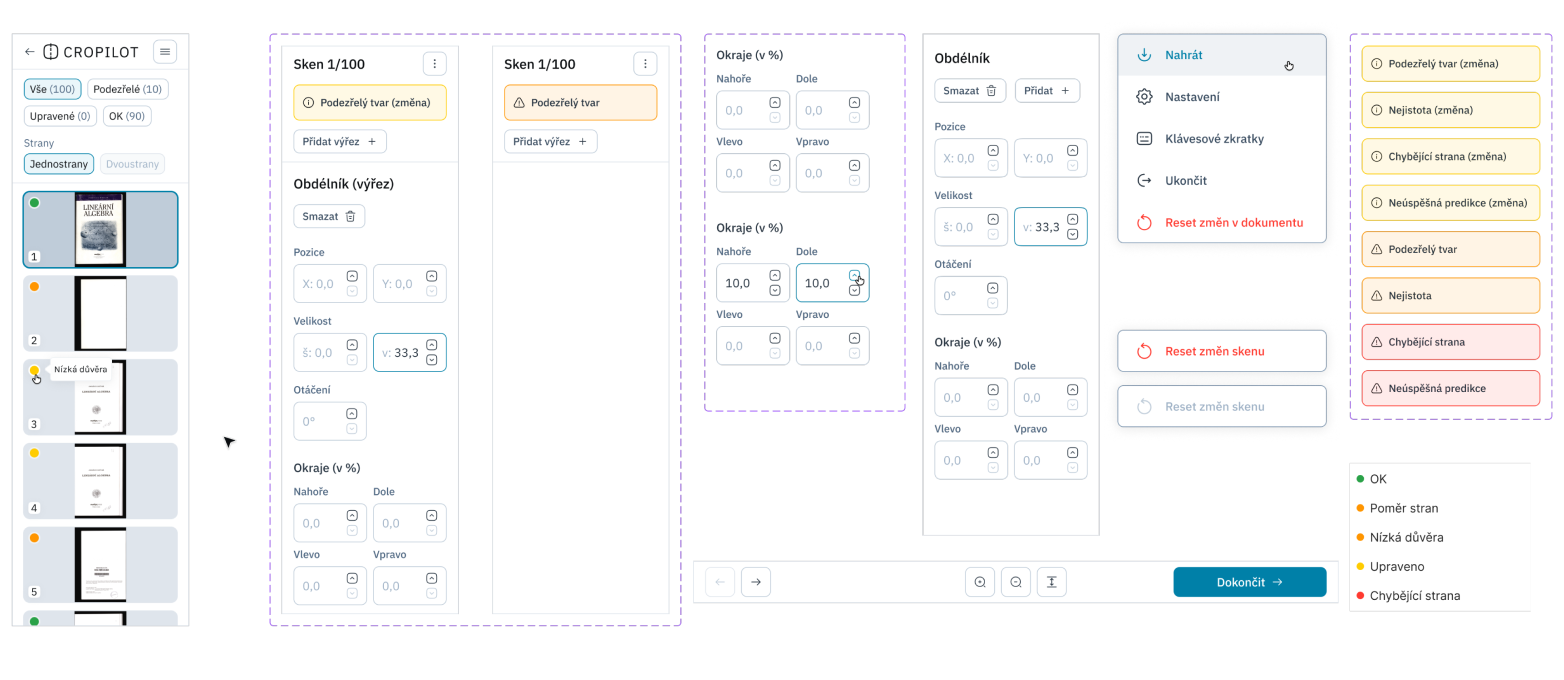
The interface therefore filters scans using labels such as suspicious shape, low confidence, missing page, or edited.
On the left side of the editor is a list of scans and filters, in the middle a large preview of the original scan with highlighted crop areas, and on the right, a panel with parameters for the currently selected crop area.
In Cropilot, manual intervention is understood more as an exception correction than a standard workflow. If necessary, the user can move the crop area, resize it, adjust its rotation, add another page, or remove a crop area.
Interaction occurs directly on the image using editing handles, zoom, keyboard shortcuts, and visual highlighting of the active crop area.
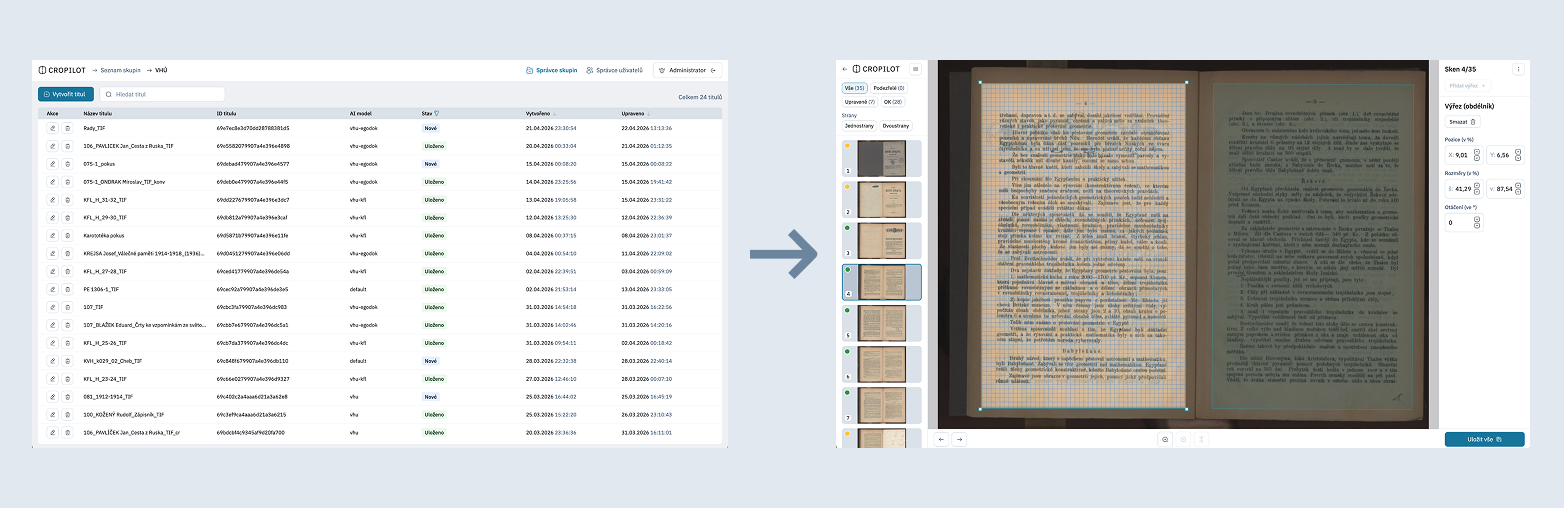
From an admin's perspective, the user interface displays a list of document groups for processing, an overview of titles, and user permissions. Depending on their assigned rights, they can manage groups, add titles, edit metadata, or simply view and monitor the processing progress. The administrator has the highest privileges and can manage and modify all parts of the system.
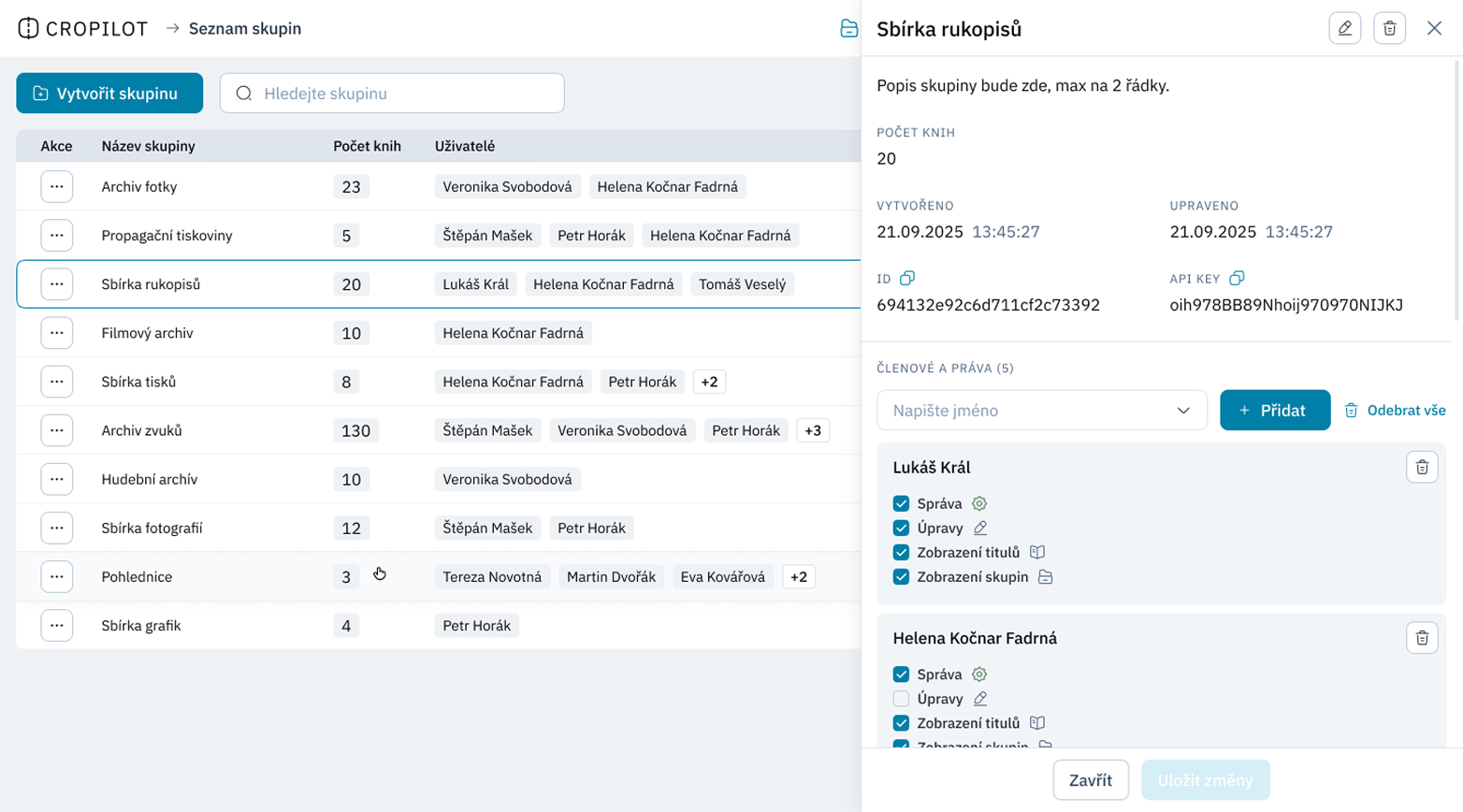
After selecting a specific group, they access individual titles and from there, open the editing interface for the given document or batch of scans.
The user interface is intentionally simple and minimalist. It was designed in Figma. Individual elements are based on our internal design system, which saves us time in both design and development and maintains visual consistency. However, it is not a universal template applied without careful consideration.
We optimize each interface for a specific project, its users, and the work context. For Cropilot, this means an emphasis on interaction design, quick orientation within processing states, and the fewest possible distracting elements.
We continuously test the interface internally and with our partners and real users. Based on feedback, we iterate on individual flow steps, labels, states, and editor behavior, and eliminate UX shortcomings that only become apparent during actual data work.
The goal of the design is not to create another manual cropping tool, but an editor for overseeing automation. The ideal state and vision is for Cropilot to process an entire batch without user intervention. Currently, human intervention is required when an uncertain result needs to be confirmed or corrected.
From a development perspective, it's a Python application deployed in the cloud, which is scalable and orchestrated using the Hatchet task management system. Cropilot can therefore asynchronously process hundreds of pages per minute.
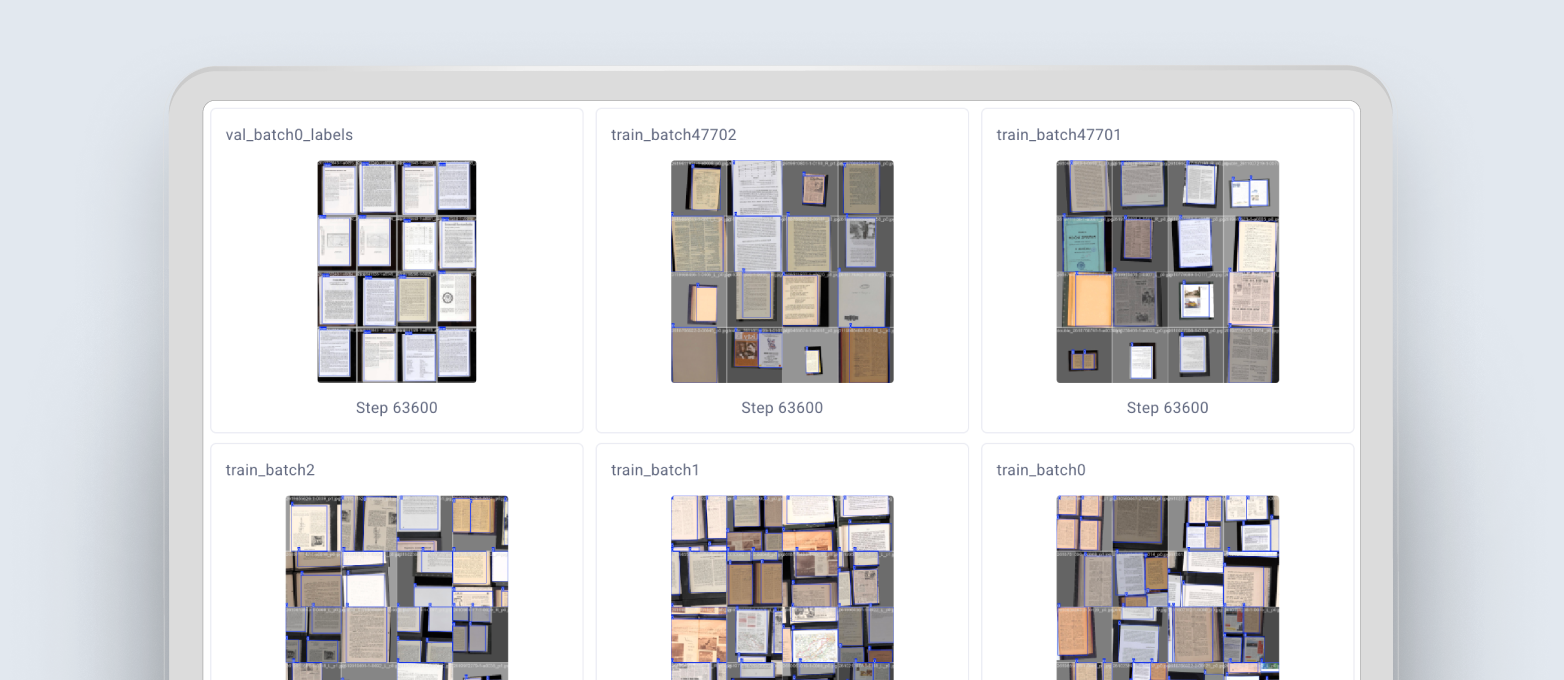
Crop area detection is handled using artificial intelligence. The application uses two vision models trained by us. First, the YOLO model (You Only Look Once) is applied to the scan, which is used, for example, for real-time object detection in autonomous driving or for quality control in manufacturing.
The model stores the number and location of pages and passes this data to the second model. This is a ResNET-type convolutional network, which predicts the angle by which each crop area needs to be rotated to contain straight text.
Both models are trained on image data from several types of semi-automatic and automatic scanners. The dataset includes scans of books, newspapers, magazines, and documents from the 19th to the 21st century.
The editing interface is written in Angular and TypeScript. Interaction with crop areas is ensured by direct manipulation of the canvas.
The entire project is open source and available on GitHub:
https://github.com/moravianlibrary/orezy-backend
https://github.com/moravianlibrary/orezy-frontend
The application includes an API, allowing it to be integrated into other processes. The GitHub repository also contains scripts that enable bulk upload and cropping of your own collections via the API.
We are developing Cropilot for the Moravian Library as a modern tool designed to be integrated into the digitization workflow and automate routine scan cropping in production. The tool is still under active development, and we continue to look for ways to simplify document digitization. Do you have an idea how this tool could be used in your organization? Let us know.


